Configuration
AgentUX is configured through two interfaces: the Settings panel in Project Settings for UE-native properties, and the Config Files tab for editing YAML and Markdown configuration files directly.
On This Page
- Settings Panel
- Config Files Tab
- GraphRAG YAML Reference
- Restoring Defaults
- History Tab
- Model Selector
- Settings Quick Reference
Settings Panel
Open Project Settings > Plugins > AgentUX to configure the plugin. Settings are organized into categories:
| Category | What It Controls |
|---|---|
| Server | WebSocket port, enable/disable |
| Security | Authentication, rate limits, batch size |
| GraphRAG | Config paths, Neo4j connection, ONNX model |
| Chat | Claude CLI path, model, context budget |
| Chat > Identity | System prompt, home directory, additional dirs |
| Chat > MCP Servers | Additional MCP server config files |
| Chat > Permissions | Auto-approve MCP tools, allowed tool patterns |
| Bridge-v2 (API bridge) | Anthropic API bridge for programmatic access without the CLI. Requires API key (pay-per-use). Most users skip this. |
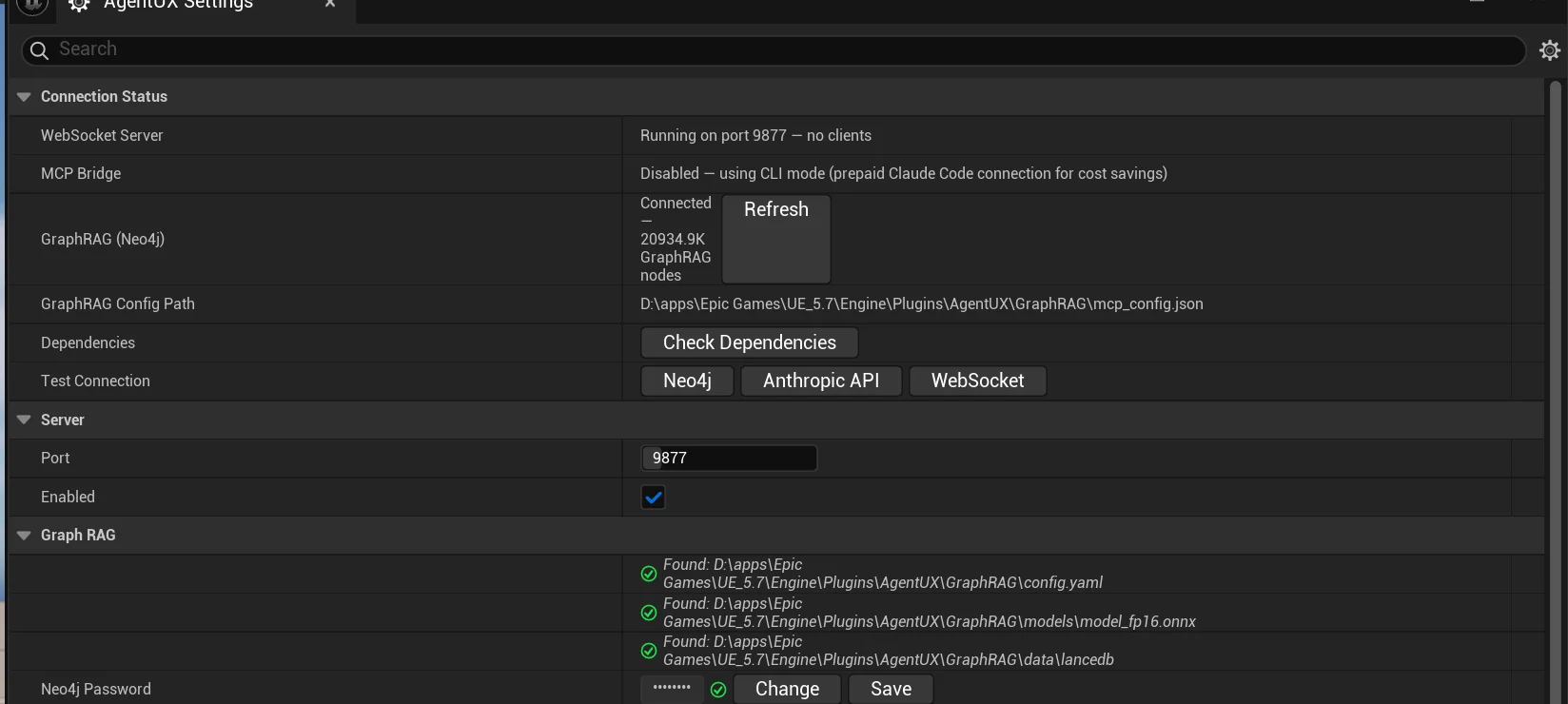
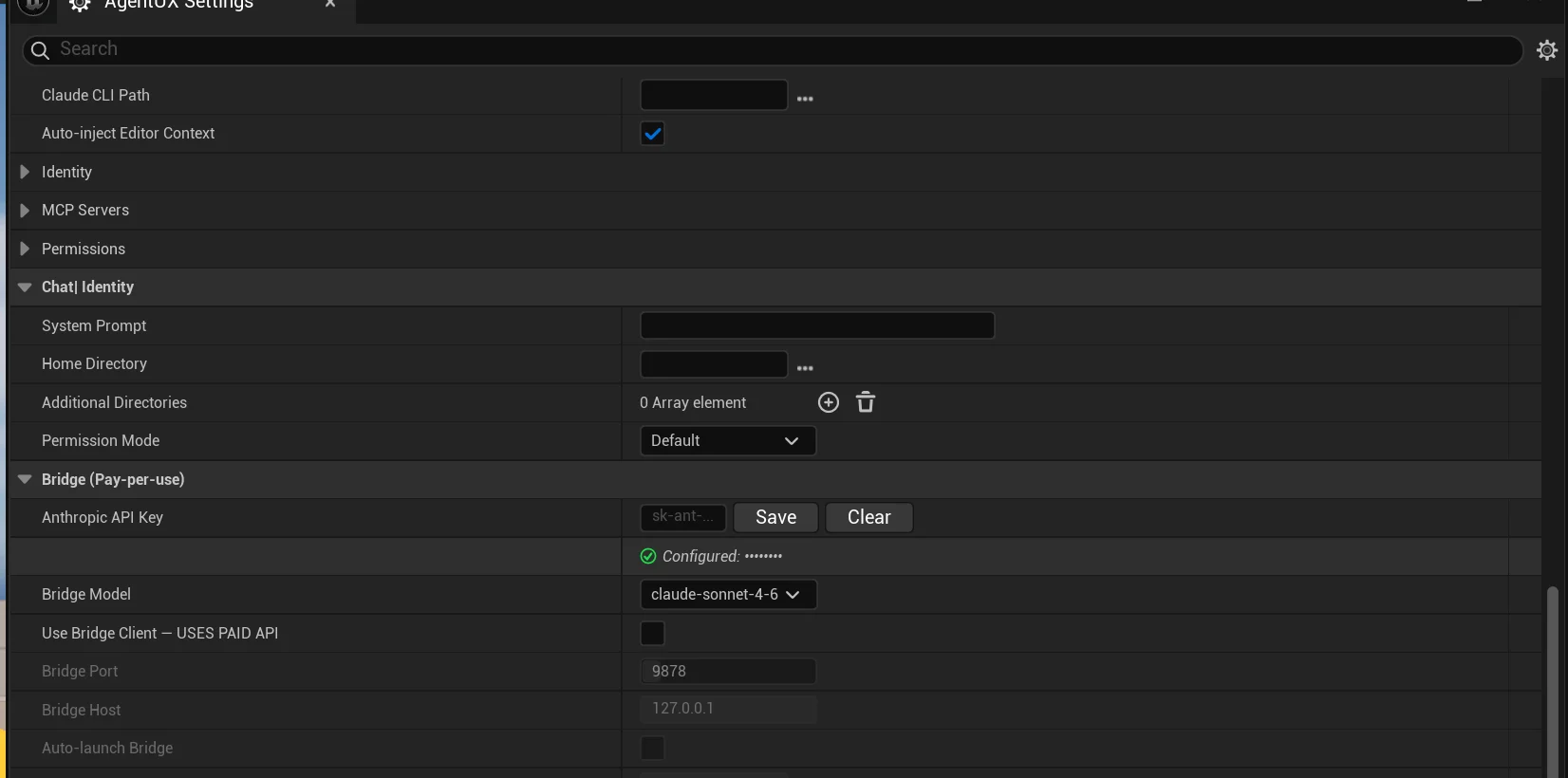
Hover for help
Every setting has a tooltip. Hover over any property name to see a description, default value, and relevant security notes.
Path validation
File and directory path settings show a validation indicator below the field:
- Green checkmark with
Found: D:\full\path\to\file-- file exists at the resolved path - Yellow warning -- wrong file type or extension
- Red X with
Not found: D:\full\path\to\file-- file does not exist
The resolved absolute path is shown so you can easily locate the file in your file manager or external editor.
Browse buttons
All file and directory path properties include a browse button (...) that opens a system file/folder picker dialog.
Config Files Tab
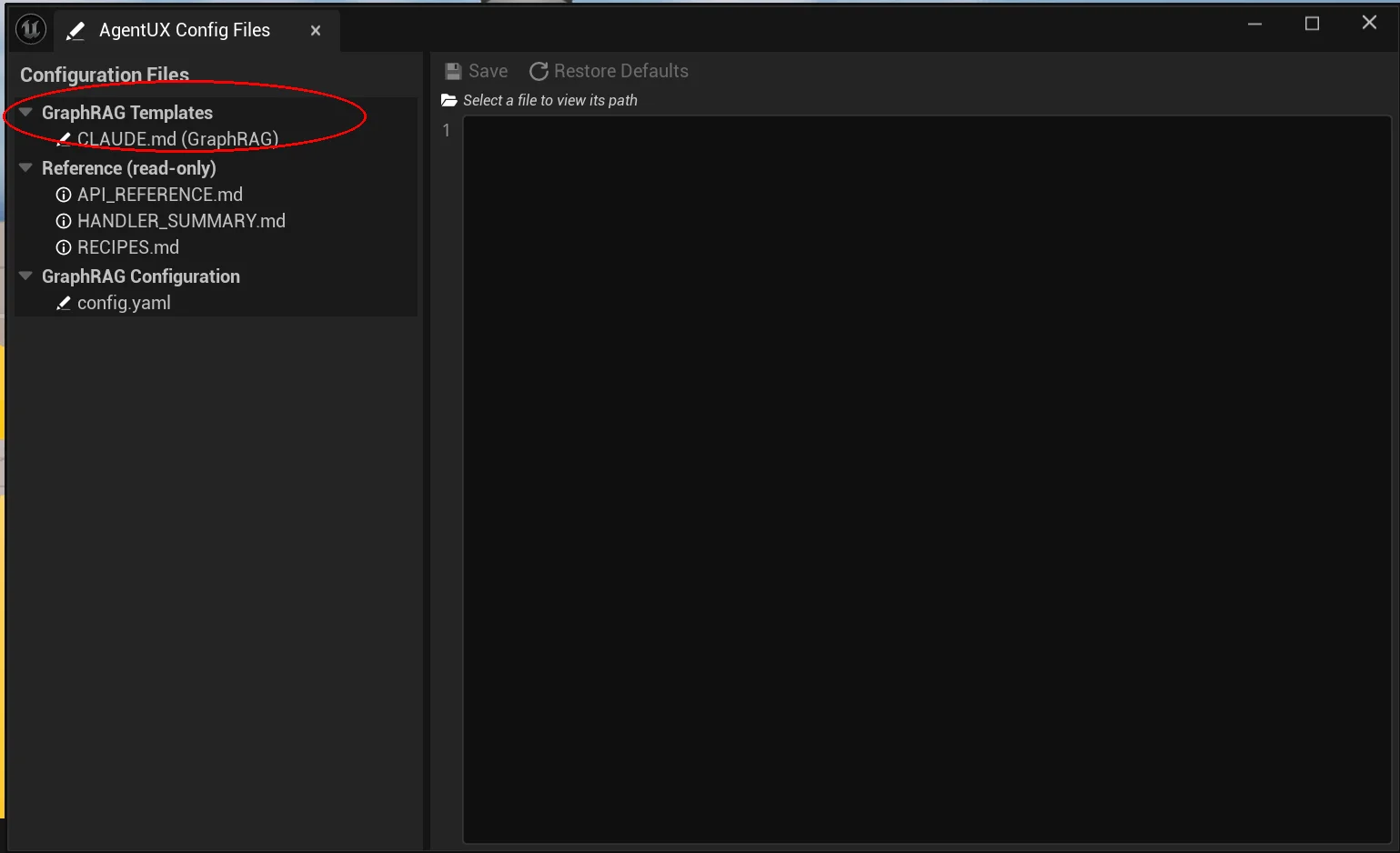
Open Window > Tools > AgentUX > Config Files (or use the keyboard shortcut) to access the built-in configuration file editor.
Layout
- Left panel: Tree view of discoverable configuration files, organized by category
- Right panel: Text editor with line numbers for the selected file
- Path bar: Shows the full absolute path to the selected file above the editor
File categories
| Category | Files | Editable |
|---|---|---|
| Project Files | .claude/CLAUDE.md, Bridge CLAUDE.md | Yes |
| Bridge Memory Files | *.md files in Memory Directory | Yes |
| GraphRAG Templates | GraphRAG CLAUDE.md | Yes |
| GraphRAG Configuration | config.yaml | Yes |
| Reference | API docs, handler summary, recipes | Read-only |
Editing workflow
- Click a file in the tree to load it
- Edit the content in the text editor
- Press Ctrl+S or click Save to write changes to disk
- The tab title shows an asterisk (
*) when there are unsaved changes

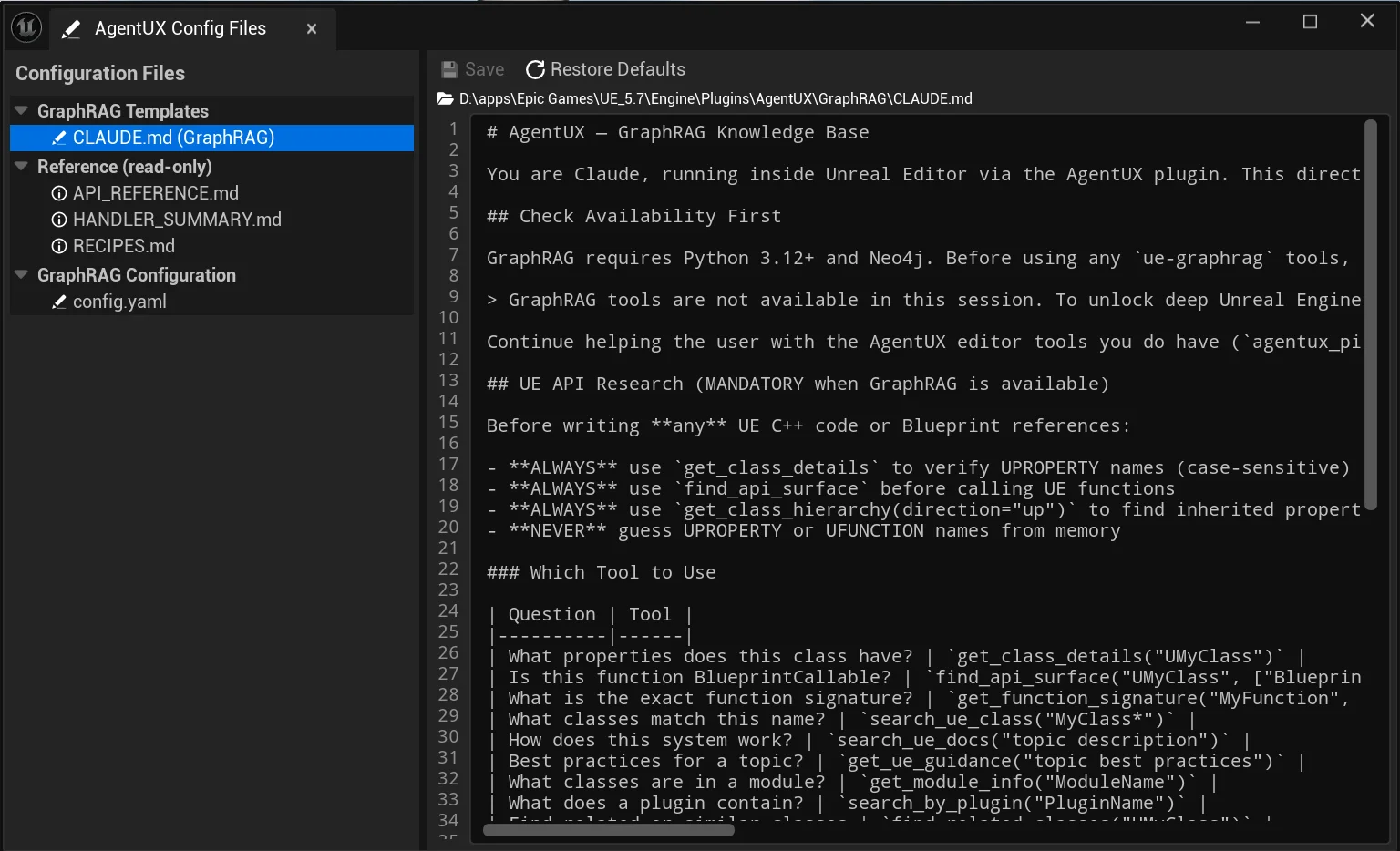
Read-only files (like API reference docs) open in view mode -- the save button is disabled and the path bar shows (read-only).
Locating files on disk
The path bar above the editor always shows the full absolute path to the currently selected file (e.g., D:\apps\Epic Games\UE_5.7\Engine\Plugins\Experimental\AgentUX\GraphRAG\config.yaml). You can select and copy this path to open the file in any external editor of your choice.
GraphRAG YAML Reference
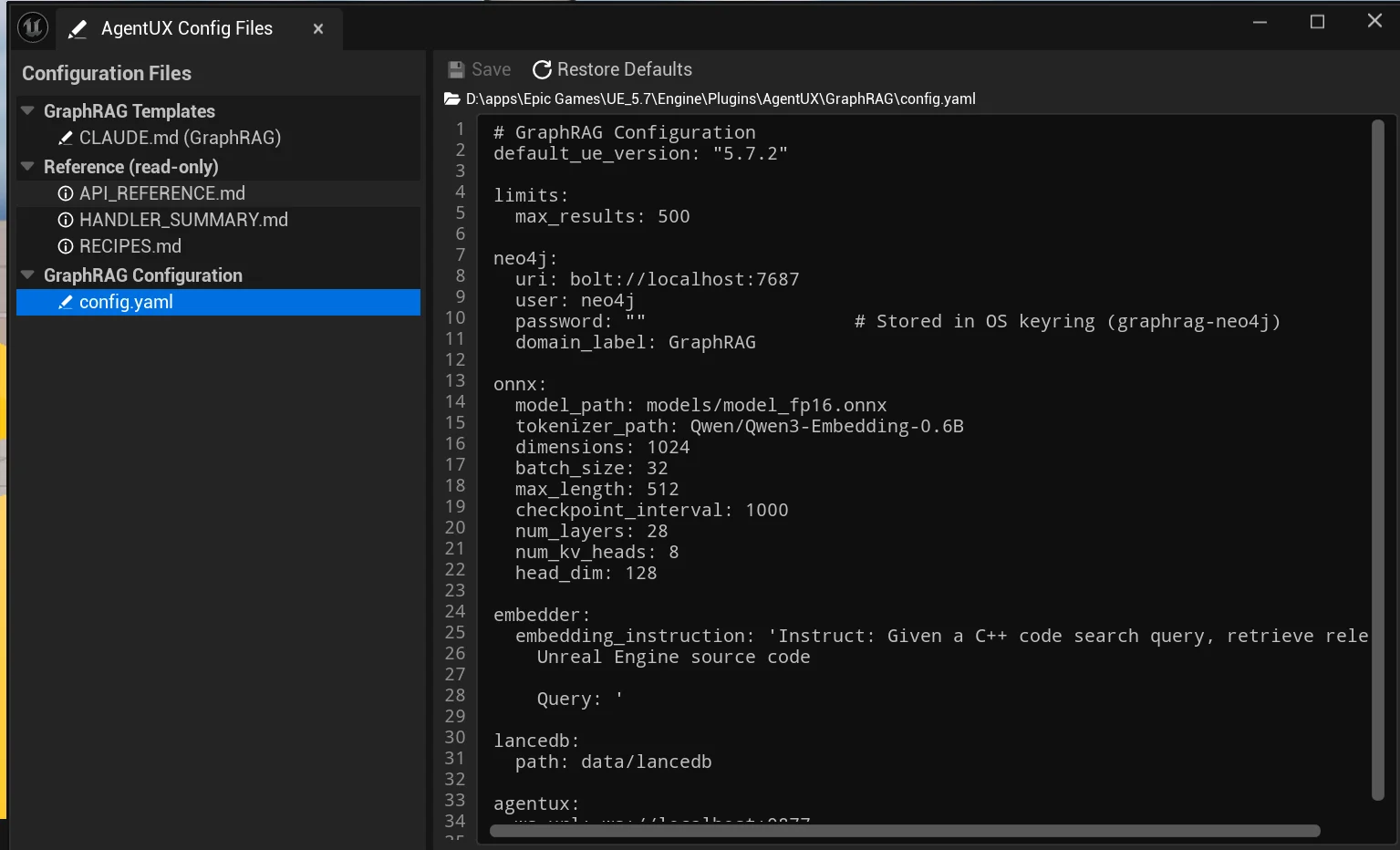
The config.yaml file controls GraphRAG's Neo4j connection, embedding model, vector store, and query limits. Edit it in the Config Files tab or with any text editor at the path shown in the path bar.
Key sections
| Section | Key Settings | Notes |
|---|---|---|
neo4j | uri, user, password, domain_label | Password resolution: OS keyring → config file → NEO4J_PASSWORD env var |
onnx | model_path, tokenizer_path, dimensions | ONNX embedding model for semantic search |
lancedb | path | Vector index data directory |
limits | max_results | Global cap on all MCP tool result counts (default: 500) |
embedder | embedding_instruction | Instruction prefix for query embeddings |
Password security
The Neo4j password is resolved in this order:
- OS keyring (recommended):
pip install keyring, then store with:
python -c "import keyring; keyring.set_password('graphrag-neo4j', 'neo4j', 'YOUR_PASSWORD')" - config.yaml:
neo4j.passwordfield (less secure -- file should be in.gitignore) - Environment variable:
NEO4J_PASSWORD(for CI/containers)
TLS encryption
For encrypted Neo4j connections, change the URI scheme from bolt:// to bolt+s:// in config.yaml. This requires TLS to be configured on your Neo4j server.
Restoring Defaults
If you make a mistake or want to start fresh, the Restore Defaults button in the Config Files tab resets the selected file to its shipped default template.
How it works
- Select the file you want to restore (e.g.,
config.yaml) - Click Restore Defaults in the toolbar
- A warning dialog appears showing:
- The file being overwritten
- The source template (e.g.,
config.dist.yaml) - The timestamped backup filename
- Click Yes to proceed
- Your current file is backed up (e.g.,
config.yaml.20260316-104500.bak) - The default template replaces your file
- The editor reloads with the default content
Backups
Every restore creates a timestamped backup in the same directory as the original file. Multiple restores create multiple backups -- previous backups are never overwritten. To recover your settings, rename the backup file back to the original name.
When Restore Defaults is available
The button is enabled only when:
- An editable file is selected (not read-only)
- A default template exists for that file (e.g.,
config.dist.yamlforconfig.yaml)
History Tab
The History tab stores every chat session with full message history in a local SQLite database. Open it from Tools > AgentUX > History.

Conversation Tabs
The Chat panel supports multiple concurrent conversations via a tab bar at the top of the window:
- Click the + button to start a new conversation.
- Click any tab to switch between open conversations.
- Right-click a tab to rename it.
- Up to 3 recent sessions load automatically when the editor starts, so you can resume where you left off.
Each tab maps to a database session. Messages persist across editor restarts.
Search
The search box in the toolbar uses full-text search to find messages across all sessions. Type a keyword and results update after a brief debounce. Search results intersect with any active role or date filters.
Filtering
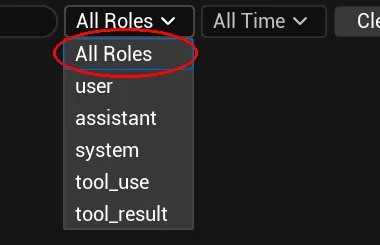
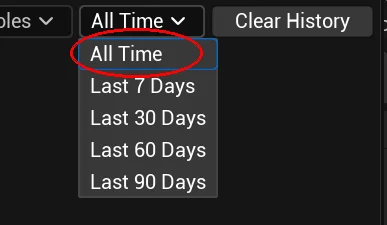
Two dropdown filters narrow the session list:
Managing History
The Clear History button provides four cleanup options:
- Clear Selected Session deletes the currently highlighted session.
- Clear Older Than removes sessions older than 7, 30, 60, or 90 days.
- Clear All Except Current keeps only the active conversation.
- Clear Entire History permanently deletes all sessions and messages.
All deletions require a confirmation dialog. Deleted data cannot be recovered.

Storage
History is stored at [ProjectDir]/Saved/AgentUX/chat_history.db. The database uses SQLite with WAL mode for concurrent reads during streaming.
Model Selector
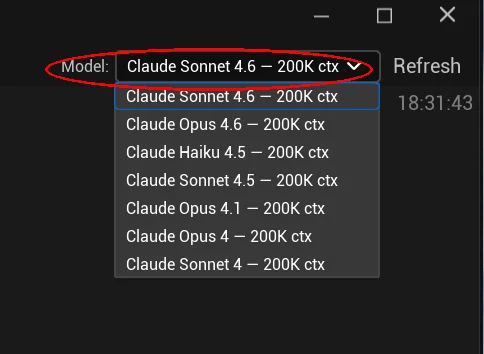
The Chat window includes a model selector dropdown in the top-right corner. Switch between Claude models without leaving the editor.
Settings Quick Reference
Server
| Setting | Default | Description |
|---|---|---|
| Port | 9877 | WebSocket server port |
| Enabled | On | Start WebSocket server on editor launch |
Security
| Setting | Default | Description |
|---|---|---|
| Require Authentication | On | Enforce auth token on all connections |
| Max Requests Per Second | 100 | Per-connection rate limit (10-1000) |
| Max Batch Size | 50 | Max JSON-RPC batch array elements (1-500) |
GraphRAG
| Setting | Default | Description |
|---|---|---|
| GraphRAG Config | (auto-detect) | Path to config.yaml |
| ONNX Model Path | (auto-detect) | Embedding model file |
| Neo4j URI | bolt://localhost:7687 | Scheme + host + port |
| Neo4j User | neo4j | Database username |
Chat
| Setting | Default | Description |
|---|---|---|
| Claude CLI Path | (auto-detect) | Path to Claude Code executable |
| Auto-inject Context | On | Include editor state in chat messages |
| Context Token Budget | 500 | Max tokens for context injection (100-2000) |
| Permission Mode | Default | Require approval for tool use |
| Auto-approve MCP Tools | On | Allow Claude to use MCP tools without asking |
For the complete list of settings with detailed descriptions, hover over each setting in the editor or see the Security page for security-specific settings.