Asset Inventory
Scan every UE project you work with into one local inventory. Search by triangle count, Nanite status, source, or name. See which assets are reused across projects, then migrate them with full dependency cascade. One Slate panel. One JSON-RPC namespace. One CLI surface.
On This Page
- Overview
- Architecture: Multi-Source, Multi-Project, Scan-Based
- Prerequisites
- Step 1: Organize Downloads (Optional)
- Step 2: Scan Projects
- Step 3: Search and Report
- Step 4: Migrate Assets Between Projects
- Step 5: Sync to Neo4j (Pro)
- Step 6: Showcase Matching Assets
- Neo4j Schema Reference
- Troubleshooting
Overview
The Problem
You're working across multiple UE projects. Some came from Fab packs, some from Megascans / USD downloads, some you imported by hand. You need to find every "bench" mesh you own, see which ones are reused across projects, and migrate the right one (with all its dependencies) into your current project. Content Browser only searches one project at a time. Fab's search finds products you bought, not meshes inside them. You can't filter by triangle count, Nanite status, or LOD count. And after the Quixel Bridge shutdown, your Megascans library is scattered across folders with no index.
The Solution
Asset Inventory scans every UE project you point it at into a local SQLite catalog at your Home Project. One scan picks up assets from four sources in a single pass: Fab packs, generic /Game/ walks (anything you imported manually), USD/USDZ files, and explicit Manual tagging. Triangle counts, Nanite status, LOD counts, disk sizes, source attribution, and per-project memberships are all indexed.
Search two ways. Natural language for exploration: ask Claude "find all vegetation StaticMeshes under 5,000 triangles, used in more than one project" and get results in seconds. Claude translates your intent into a query, runs it through the editor.inventory.* JSON-RPC namespace, and returns results. Direct CLI or MCP tools for precision: repeatable, deterministic queries for CI pipelines, shared scripts, or audits hit the same local catalog. The Slate Asset Inventory panel gives you the same data interactively, with the Asset Usage Report nomad tab ranking assets by how many projects use them.
The local catalog ships in every edition. Pro adds an optional Neo4j sync that mirrors the SQLite inventory into a graph database for cross-project Cypher analytics. Migrate assets between projects with full dependency cascade through one JSON-RPC call. The whole pipeline works offline, scans what's actually on disk (no Fab API dependency), and costs nothing beyond the AgentUX edition you already own.
UE Projects ──scan──▶ Local SQLite catalog (asset_v2 + asset_project_membership)
   (Fab + USD + GameWalk + Manual)         │
                                           ├──▶ Slate Asset Inventory panel
                                           ├──▶ Asset Usage Report nomad tab
                                           ├──▶ editor.inventory.* JSON-RPC (13 methods)
                                           ├──▶ Python CLIs (scan, usage report, migrate)
                                           └──▶ Optional Neo4j sync (Pro)
→ Cypher queries, graph analytics| Component | Purpose | Tier |
|---|---|---|
scan_project.py | Scan the running UE project; multi-source ingest into the local SQLite catalog | All |
usage_report.py | List projects, list assets, find cross-project usages | All |
migrate_asset.py | Copy an asset into another project with hard-package dependency cascade | All |
inventory_cleanup.py | Search-first / purge-second destructive cleanup with safety token gate | All |
sync_inventory_to_neo4j.py | Mirror the SQLite catalog into Neo4j as :InventoryAsset / :InventoryProject / :InventoryCollection | Pro |
showcase_assets.py | Spawn matching assets in editor as a walkable showcase grid | Pro |
editor.inventory.* | 13 JSON-RPC methods (scan, list, find usages, usage report, migrate, sync, cleanup) | Free for everything except sync; Pro for sync |
| Slate Asset Inventory panel | In-editor browse, sort, search, detail pane, right-click migrate | All |
| Asset Usage Report nomad tab | Cross-project usage ranking with cross-tab jump to inventory rows | All |
Architecture: Multi-Source, Multi-Project, Scan-Based
Asset Inventory is local-first by design. Every scan writes to a single SQLite catalog at {HomeProject}/FabCatalog/catalog.db shared across all your UE projects. Each scan is idempotent: rescanning a project updates membership rows for assets it still finds and prunes ones that are gone. Assets belong to many projects via an explicit membership table, so the same mesh used in three projects shows up once with three project links.
Sources
| Source | What It Captures | How It's Detected |
|---|---|---|
fab | Assets from Fab pack downloads with full pack identity | Fab provider walks the pack metadata and asset lists |
gamewalk | Anything under /Game/ in the Asset Registry that wasn't already attributed | Generic walk over the live registry; first-provider-wins-source dedup |
usd | USD / USDZ files including Megascans content | USD provider shells out to the bundled scan_usd_assets.py via FMonitoredProcess |
manual | Anything you tag explicitly via --source-override | Author-supplied attribution at scan time |
Why this shape
The headline value is cross-project usage reporting and asset migration. Both depend on the catalog knowing every project an asset lives in. The single shared SQLite database, the multi-source scan engine, and the per-project membership table exist to make those two questions cheap to answer: which assets are reused where, and what does it take to move one of them.
Prerequisites
| Requirement | Details |
|---|---|
| UE Editor | 5.6+ with AgentUX plugin enabled |
| AgentUX Plugin | WebSocket server active on port 9877 |
| Home Project configured | Set during install.py or via --home-project flag; SQLite catalog lives at {HomeProject}/FabCatalog/catalog.db |
| Python 3.10+ | For the Python CLIs (scan_project.py, usage_report.py, etc.) |
| Claude Code | For MCP tool access (optional, scripts work standalone) |
| Neo4j | Optional. Required only for the Pro Neo4j sync (localhost:7474 / localhost:7687) |
Step 1: Organize Downloads (Optional)
Asset Inventory works against any UE project regardless of layout. If you're starting fresh and want a clean structure, one UE project per asset category keeps both projects and inventory categories tidy:
D:/FabCatalog/
├── ArchVizInteriors/         # Architecture & interior packs
├── CityParkEnvironment/      # Outdoor environment pack
├── QuixelTrees/              # Megascans vegetation
├── NatureVegetation/         # Other vegetation
└── UrbanModern/              # Urban/modern assets
Download asset packs from Fab.com or your other sources, then point each category project at the AgentUX scanner. If you already have a working project layout, skip this step entirely; the scanner doesn't care.
Step 2: Scan Projects
From the editor toolbar
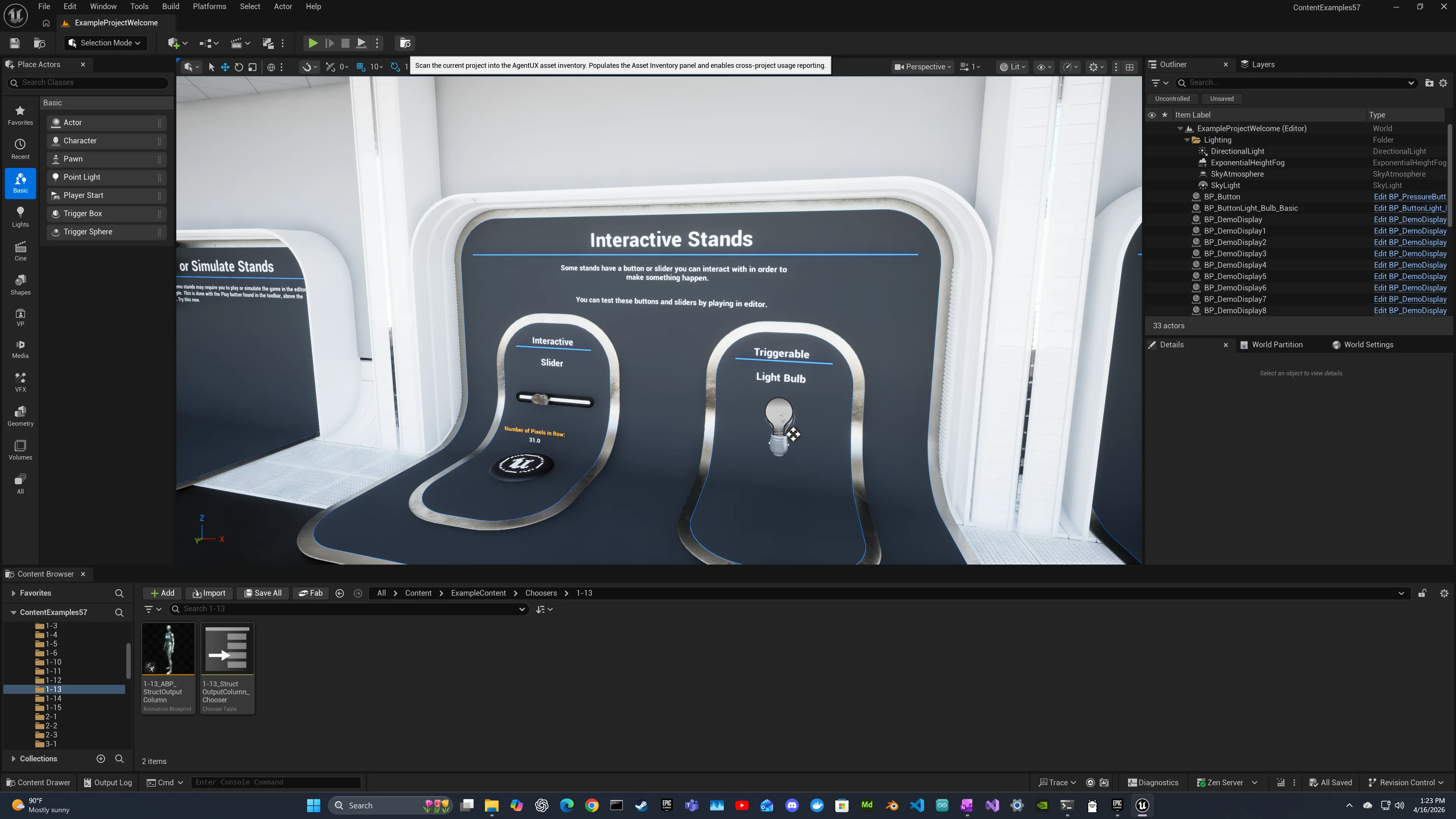
The fastest path is one click. With your project open in UE, click Scan This Project in the Level Editor toolbar. A Slate notification shows progress; on completion it reports the asset count upserted into the catalog.
From the CLI
For scripted, headless, or CI-driven scans, the editor must still be running on the target project (the scanner queries the live Asset Registry):
python scan_project.py --show-progressThe scan runs all four providers in one pass: Fab attribution where pack metadata is detectable, USD for any .usd* files under Content/ (gated on the USDCore plugin), generic /Game/ walk for everything else, and Manual override if you supply --source-override.
StaticMesh and SkeletalMesh assets are enriched with triangle count, vertex count, LOD count, and Nanite status during the scan. Materials get textures-used edges. Other classes get name, path, and class.
| Flag | Description |
|---|---|
--project | Project path (optional; defaults to the running editor's project, validated against it on submit) |
--source-override | Force a source label on every asset: fab / usd / gamewalk / manual (useful for baseline imports of Fab-seeded directories) |
--show-progress | Heartbeat output with elapsed, assets seen, and memory |
--poll-interval | Seconds between status polls (default tracks the server-side scan via async scan_id; AIR-FIX-6) |
--timeout | Per-call WebSocket timeout in seconds |
--json | Emit machine-readable JSON instead of human-readable summary |
Internally the CLI calls editor.inventory.scanProject (returns a scan_id immediately), polls editor.inventory.getScanStatus until the scan reaches a terminal state, and supports Ctrl+C for cooperative cancellation via editor.inventory.cancelScan. Long scans no longer trip client-side timeouts; the server-side scan continues regardless of poll cadence.
USD-only scans without the editor
The legacy scan_usd_assets.py still ships and runs without the editor (handy for headless USD ingestion):
python scan_usd_assets.py --source-dir "D:/FabCatalog/QuixelTrees/Content" \
    --project-name "QuixelTrees" --show-progress
For most workflows, prefer scan_project.py; it picks up USD content automatically as part of a single multi-source pass.
Step 3: Search and Report
In the editor: Slate Asset Inventory panel
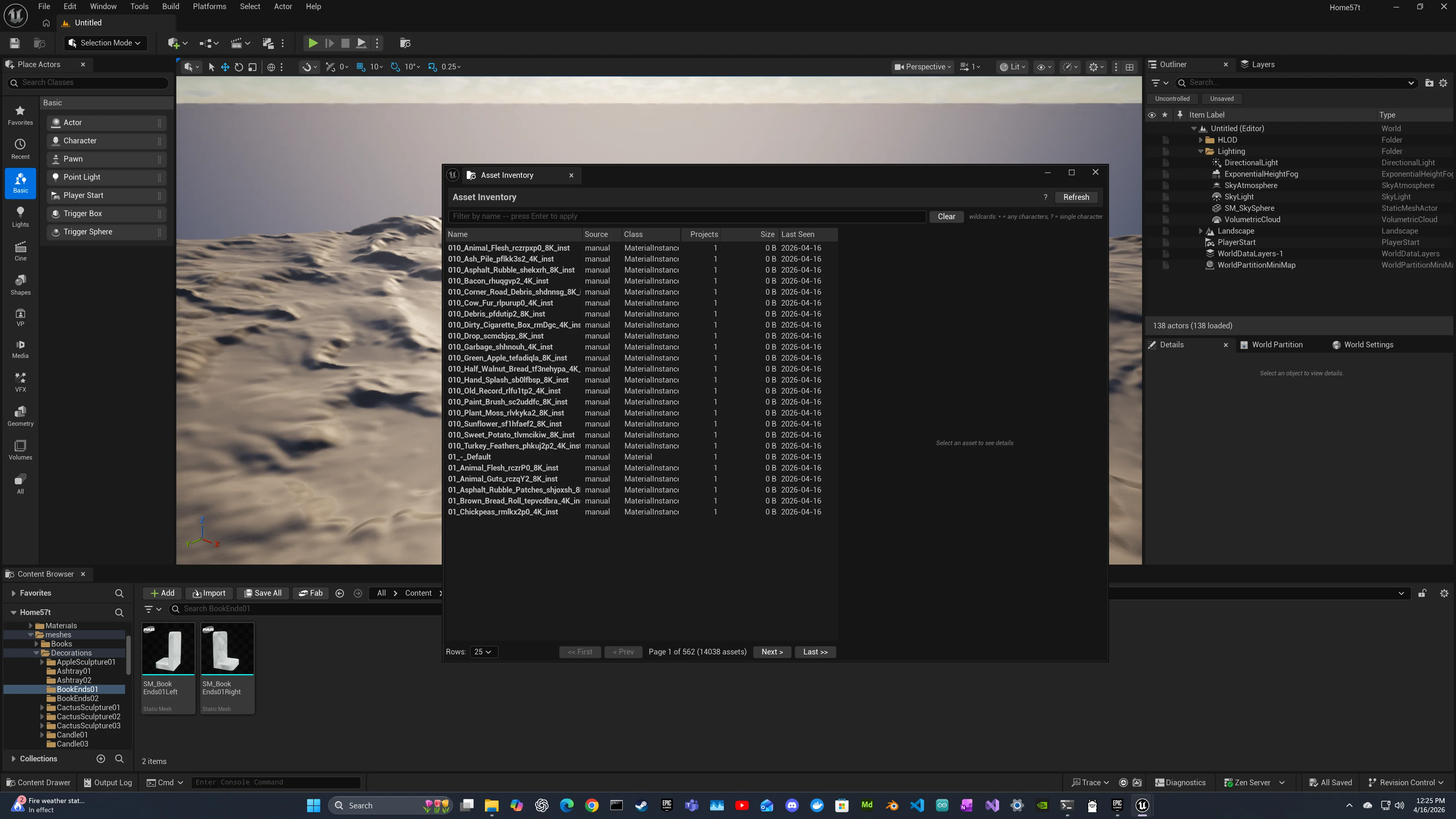
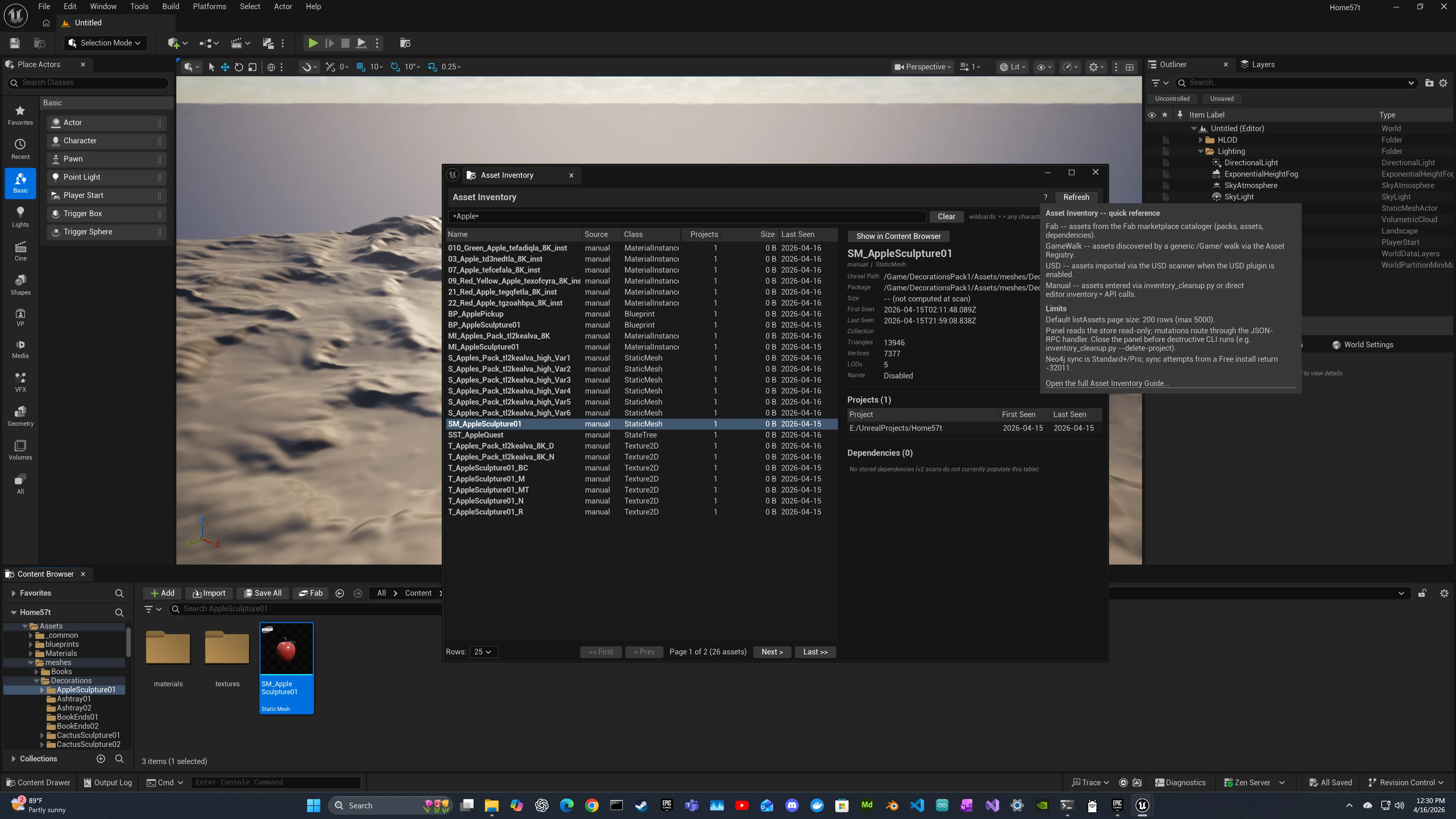
Open Window > AgentUX > Asset Inventory. The panel shows an Excel-like sortable list of every asset in the catalog: name, source, class, project count, size, last seen. Click any row to see metadata, project memberships, and dependencies in the detail pane. Right-click any row for Migrate to Project. Wildcard search supports * and ? across asset names. The Show in Content Browser button on the detail pane jumps the editor to the asset, with a friendly fallback dialog when the asset belongs to a different project.
In the editor: Asset Usage Report
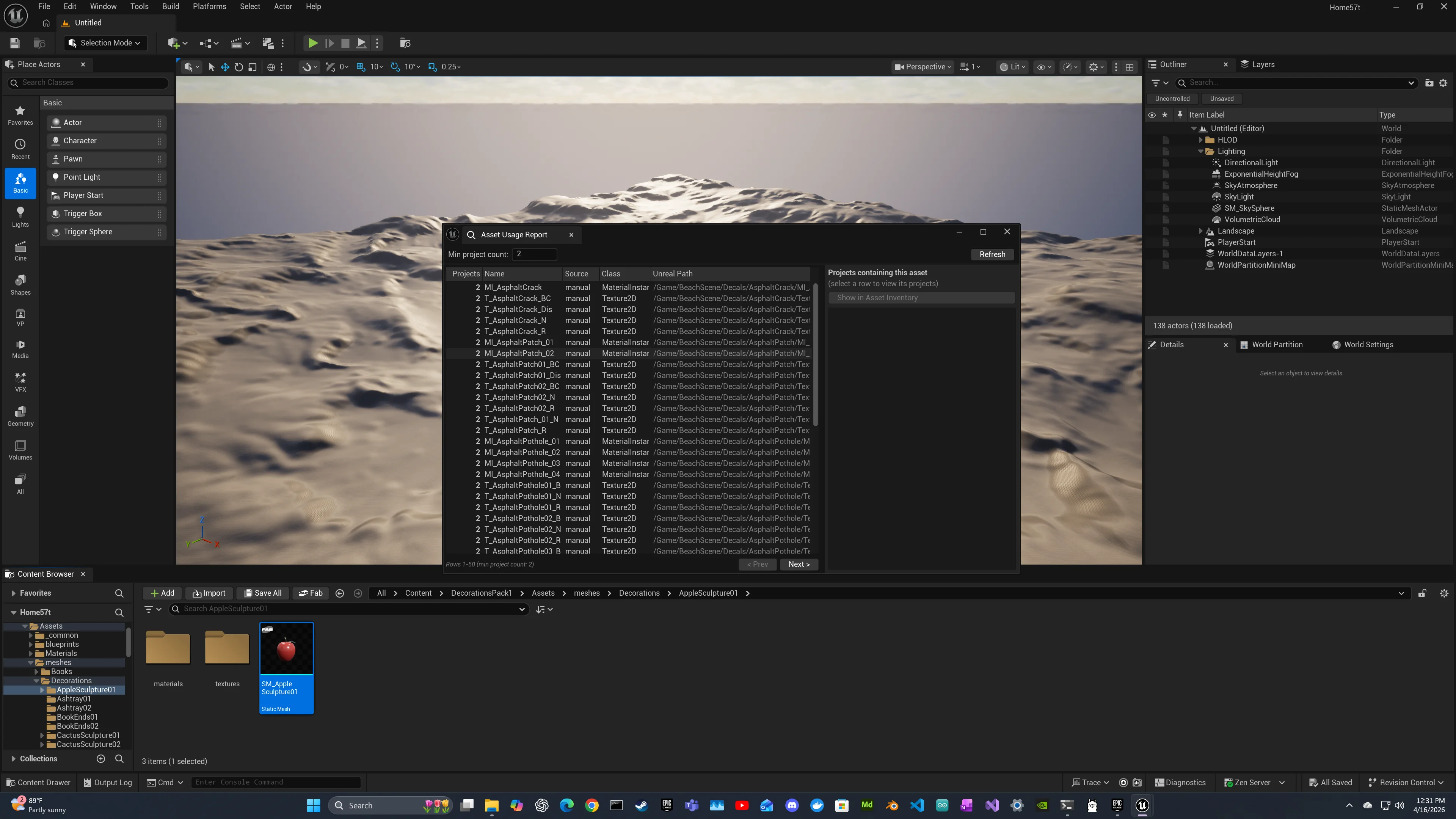
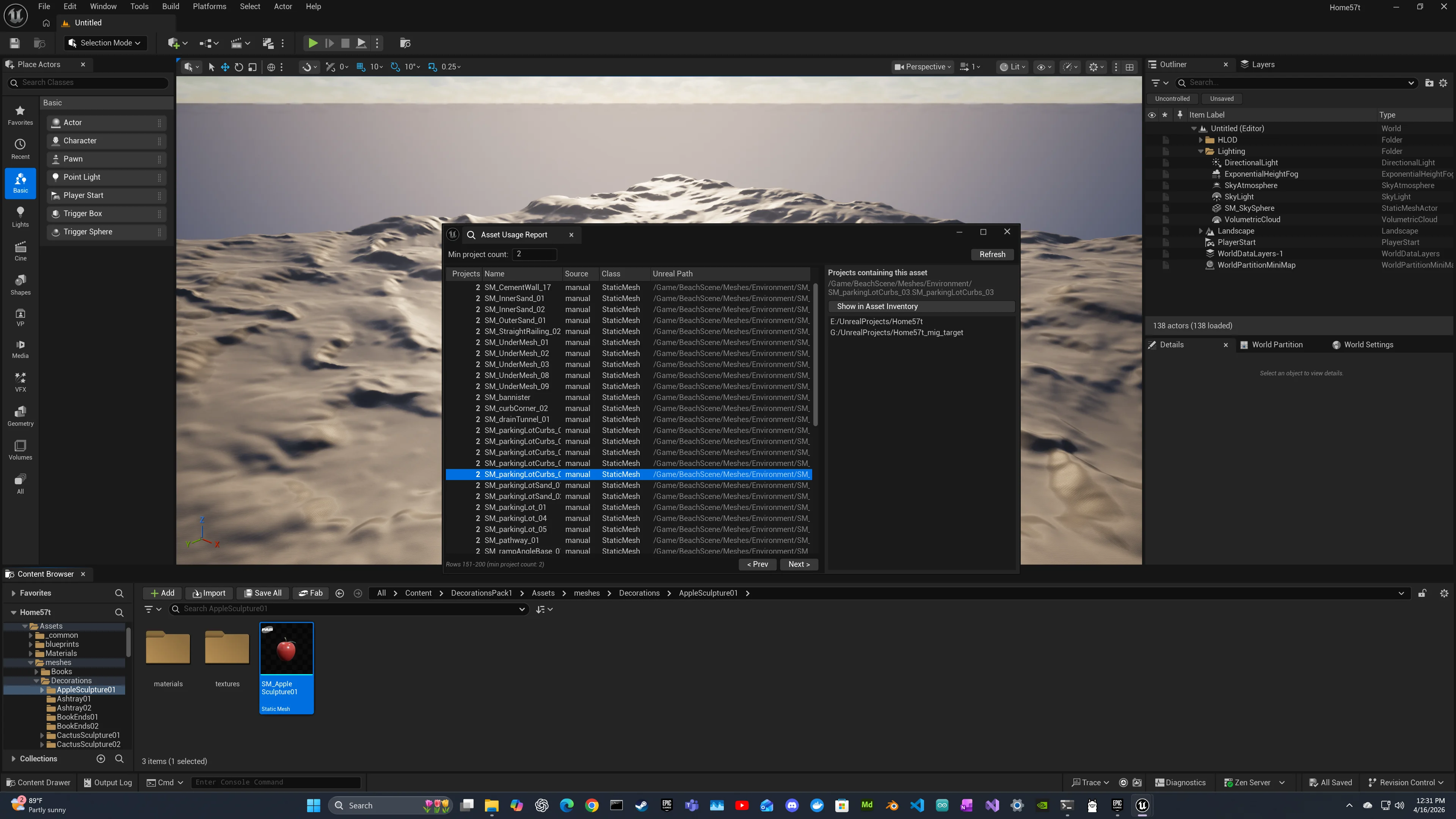
Open Window > AgentUX > Asset Usage Report. This nomad tab ranks every asset by how many projects use it (most-reused first), with a drill-down pane showing the project list. Click Show in Asset Inventory on any row to jump back to the main inventory panel focused on that asset. Useful for finding the assets that earn their keep across your library and the ones that exist only in one place.
Via Claude Code (natural language)
With the AgentUX MCP server running, use natural language prompts:
- "Find all vegetation StaticMeshes across my projects"
- "What's in the CityParkEnvironment project?"
- "Which assets are used in more than one project?"
- "Find assets in CityPark that aren't in any other project"
Claude calls the editor.inventory.* JSON-RPC namespace (13 methods) through the MCP bridge wrappers:
| Method | Purpose |
|---|---|
editor.inventory.listAssets | Browse assets, optionally filtered by project_path and/or source |
editor.inventory.listProjects | Every project observed in the inventory with asset counts |
editor.inventory.findUsages | Cross-project memberships for one asset |
editor.inventory.getUsageReport | Cross-project usage report; assets ranked by project count DESC |
editor.inventory.scanProject | Async scan that returns a scan_id immediately |
editor.inventory.getScanStatus | Poll an in-flight or recently-terminal scan |
editor.inventory.migrateAsset | Copy an asset and its hard-package dependency cascade into another project |
From the CLI
Same data, scriptable:
# List every project in the catalog
python usage_report.py --mode list-projects

# List assets in a project, paginated
python usage_report.py --mode list-assets --project "E:/UnrealProjects/CityPark"

# Find every project that uses a specific asset
python usage_report.py --mode find-usages --unreal-path "/Game/Meshes/SM_Bench01"
Step 4: Migrate Assets Between Projects
Once you've found the asset you want, migrate it into your working project. Three ways to do it.
From the Slate panel
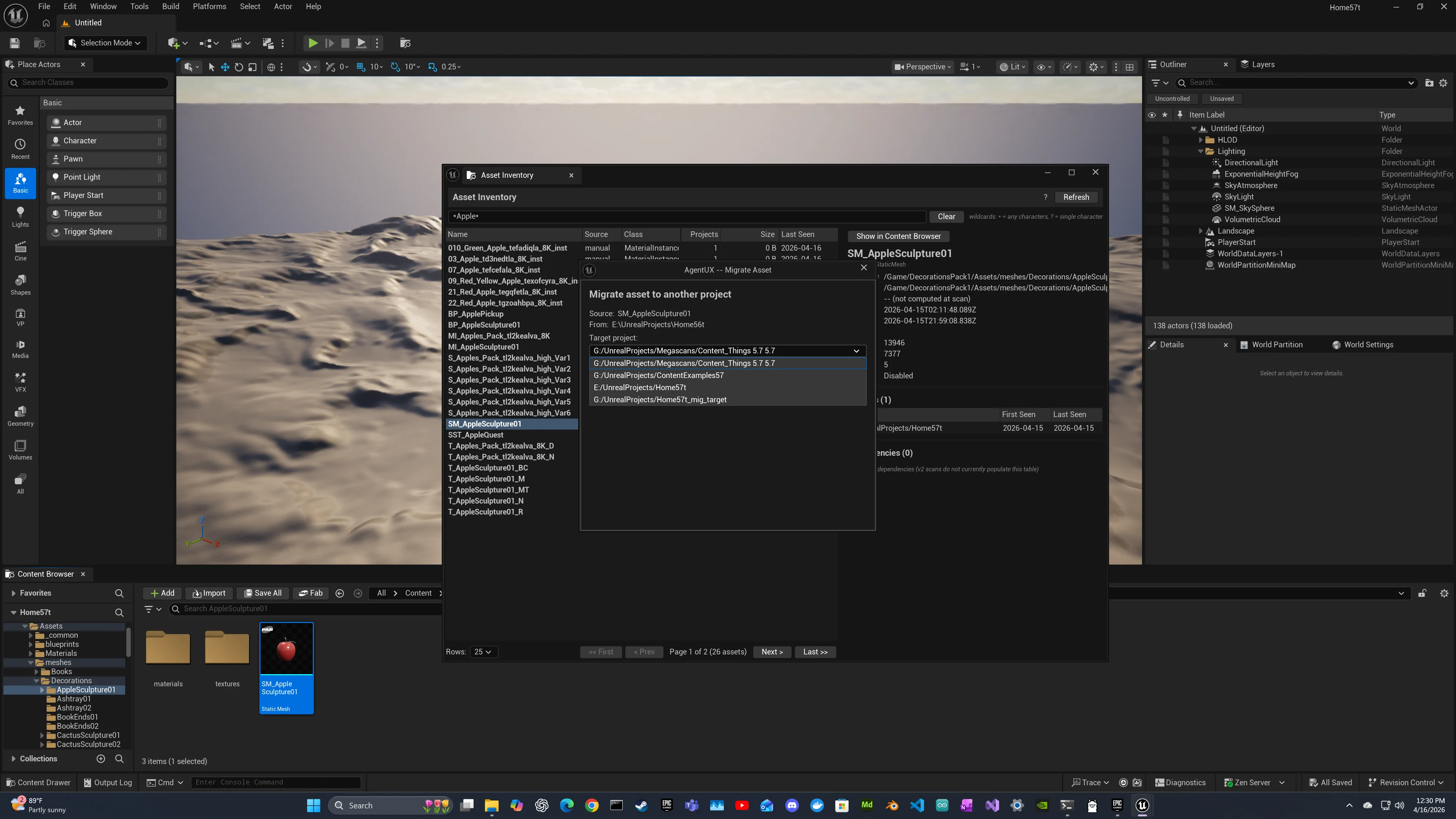
Right-click the row in the Asset Inventory panel and choose Migrate to Project.... A modal dialog lists every other project in the catalog as a target. Toggle the cascade checkbox to include hard-package dependencies (default on; recommended), then click Migrate. The result pane shows counts of migrated, skipped, and conflicts.
From the CLI
# Migrate one asset with cascade (default)
python migrate_asset.py \
  --unreal-path "/Game/Meshes/SM_Bench01" \
  --target-project "E:/UnrealProjects/MyGame"

# Dry-run prints the JSON-RPC request without connecting (CI-friendly)
python migrate_asset.py \
  --unreal-path "/Game/Meshes/SM_Bench01" \
  --target-project "E:/UnrealProjects/MyGame" \
  --dry-run
Via JSON-RPC directly
{"method": "editor.inventory.migrateAsset", "params": {
  "unreal_path": "/Game/Meshes/SM_Bench01",
  "target_project": "E:/UnrealProjects/MyGame",
  "cascade": true
}}
Migration semantics: copy (the source is left in place), cascade walks hard-package dependencies via the Asset Registry, conflict resolution is skip-on-conflict (you can pre-check via editor.inventory.listAssets if you need to). The source project must be the editor's current project; cross-process migration is out of scope.
Step 5: Sync to Neo4j (Pro)
For graph analytics, cross-project Cypher queries, or shared studio tooling, mirror the local SQLite catalog into Neo4j with one call. The sync writes a disjoint label namespace (:InventoryAsset / :InventoryProject / :InventoryCollection) so it coexists with any other graphs in the same Neo4j instance.
From the CLI
# Dry-run first to preview counts
python sync_inventory_to_neo4j.py --dry-run --show-progress

# Live sync (idempotent; rerun safely)
python sync_inventory_to_neo4j.py --show-progress

# Tune batch size for very large catalogs
python sync_inventory_to_neo4j.py --batch-size 1000 --show-progress
Via JSON-RPC
{"method": "editor.inventory.syncToNeo4j", "params": {
  "batch_size": 500,
  "dry_run": false
}}
This method is gated to the Pro tier. On Free, it returns a tier-gate error pointing at the upgrade path. After the sync, the same data is queryable directly via Cypher, the agentux_inventory_* MCP wrappers, or natural language through Claude.
The installer prints a non-blocking recommendation to run the sync when it detects a Pro or Team Studio installation with a populated local catalog and a reachable Neo4j instance. You can run it whenever you want; it's idempotent.
Step 6: Showcase Matching Assets
Spawn matching assets in the editor as a walkable grid for visual browsing:
python showcase_assets.py --project-name "CityParkEnvironment" --show-progressAssets are grouped by name affinity (SM_Wall_01, SM_Wall_02 appear together), sorted by size within each group (smallest in front, largest in back), and separated by group gaps for easy visual scanning.
| Flag | Description |
|---|---|
--project-name | Required. Source project |
--category | Filter by category (e.g., vegetation) |
--max-assets | Cap spawned assets (default: 100) |
--group-gap | Whitespace between groups in UU (default: 500) |
--dry-run | Print layout without spawning |
--no-grouping | Disable semantic grouping |
Showcase ships in the Pro edition packaging set.
Neo4j Schema Reference
The Pro Neo4j sync writes a disjoint label namespace so it never collides with the GraphRAG engine knowledge base or any other graphs in the same Neo4j instance.
Node Labels
| Label | Key Property | Description |
|---|---|---|
InventoryAsset | unrealPath (unique) | A scanned UE asset (one node per unique unrealPath regardless of how many projects use it) |
InventoryProject | projectPath (unique) | A scanned UE project (canonicalized path) |
InventoryCollection | collectionId (unique) | A grouping unit (Fab pack identity, USD collection, etc.) |
Relationships
| Relationship | From | To | Description |
|---|---|---|---|
:IN_PROJECT | InventoryAsset | InventoryProject | Asset is referenced by this project |
:IN_COLLECTION | InventoryAsset | InventoryCollection | Asset belongs to this Fab pack or USD collection |
InventoryAsset Properties
| Property | Type | Description |
|---|---|---|
name | string | Asset name (e.g., SM_Rock06) |
unrealPath | string | Full UObject path (unique key) |
className | string | UE class |
source | string | Source provider: fab / usd / gamewalk / manual |
diskSize | int | File size in bytes (when available; not populated for GameWalk-scanned assets in current release) |
triangles | int | Triangle count (StaticMesh / SkeletalMesh) |
vertices | int | Vertex count (StaticMesh / SkeletalMesh) |
lods | int | LOD count (StaticMesh / SkeletalMesh) |
naniteEnabled | bool | Nanite flag (StaticMesh) |
For the canonical, plugin-side schema document including the full property mapping table and example Cypher queries, see Docs/INVENTORY_NEO4J_SCHEMA.md in the AgentUX distribution.
Troubleshooting
Editor not reachable (port 9877)
Open UE Editor with your project, enable the AgentUX plugin (Edit > Plugins > search "AgentUX"), and restart the editor. Verify with netstat -an | grep 9877.
Auth token required
Scripts auto-resolve tokens from the credential file at <Project>/Saved/AgentUX/.creds/mcp_auth or the OS keyring. Set the token in the AgentUX Settings panel if missing.
Empty scan results or empty panel after scan
The scanner queries the live Asset Registry. Ensure the project is actually open in the editor and assets are loaded. The Slate Asset Inventory panel must be closed before destructive RPC calls (deleteProject, canonicalizeProjectKeys, deleteAssets) and is automatically refreshed after scans complete.
scanProject scan_id pending forever
Polling continues against editor.inventory.getScanStatus. Check the editor's Output Log for scan progress. Use Ctrl+C to send a cooperative cancel via editor.inventory.cancelScan.
Phantom project rows from typo'd paths
Run editor.inventory.pruneProjectKeys (or use the panel's cleanup helpers) to remove project_path entries that don't resolve to real directories. For pre-AIR-FIX-2 catalogs, run editor.inventory.canonicalizeProjectKeys once to merge non-canonical duplicates.
Neo4j connection refused (sync only)
Start Neo4j. On Windows: neo4j console or start the Neo4j Desktop app. The local SQLite catalog and all Free-tier features work without Neo4j; only sync_inventory_to_neo4j.py needs it.
Tier-gate error on syncToNeo4j (Community)
The Neo4j sync is gated to the Pro edition. Free ships the full local Asset Inventory; the Neo4j sync is the upgrade differentiator.
Showcase spawns nothing
Verify the project has StaticMesh entries: python showcase_assets.py --project-name "MyProject" --dry-run
See Docs/FAB_INVENTORY_GUIDE.md and Docs/INVENTORY_NEO4J_SCHEMA.md in the plugin distribution for the complete reference including additional Cypher query examples and per-method JSON-RPC parameter documentation.